
 EN
EN



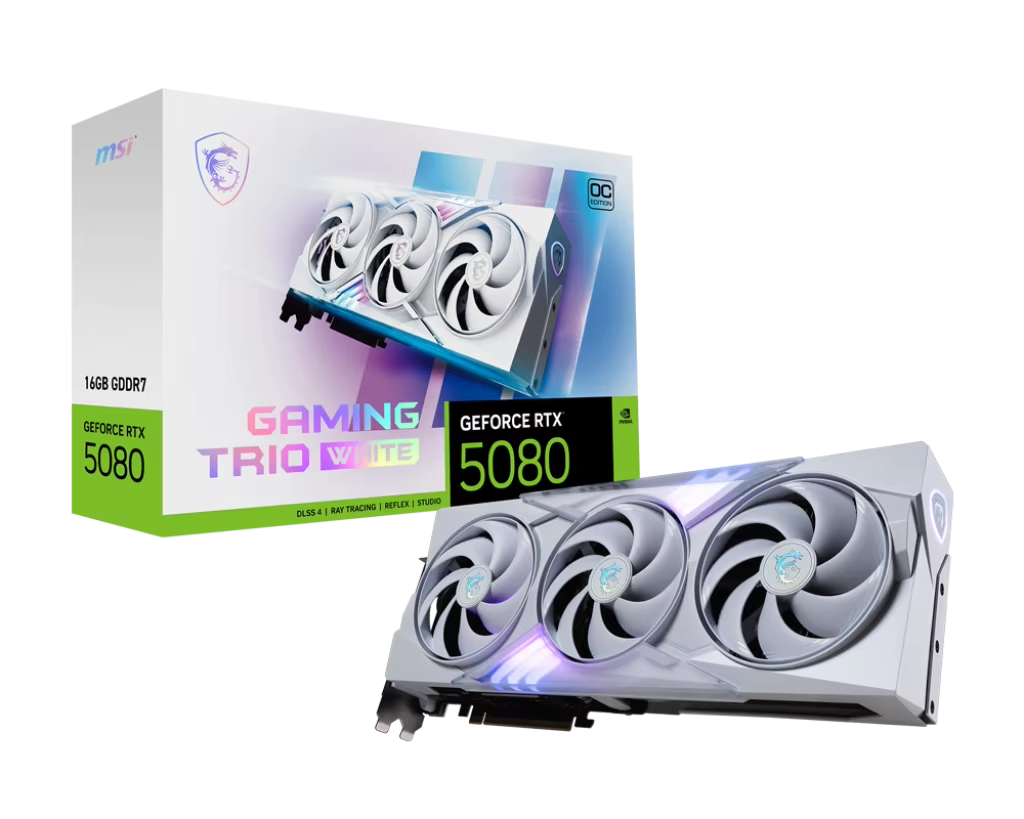
Align Graphics Card Performance with Resolution, Codec, and Workflow Demands
VRAM Requirements: From 1080p to 8K+ Editing Workflows
The amount of Video RAM (VRAM) makes a big difference in how smoothly editing works at different resolutions. Most folks find that 8GB is enough for regular 1080p work, but when moving up to 4K projects, things get tricky without at least 12GB or more to manage all those layers and color corrections. If someone is working with 8K RAW files or doing complicated composites, then getting something with 24GB or better becomes essential to avoid those frustrating render pauses and frame drops. A recent survey from Post Production in 2023 found that nearly four out of five editors experience serious workflow problems when their VRAM isn't sufficient. When the VRAM runs out, the system starts using regular RAM instead, which can really drag down playback speed sometimes making it 3 to 5 times slower than normal. So it pays to check what kind of projects will be handled most often and pick a graphics card that matches those demands.
Real-Time Hardware Acceleration for H.264, HEVC, and AV1 Decoding/Encoding
Modern graphics cards come equipped with specialized ASIC blocks that make watching compressed video formats much smoother. We're talking about popular ones like H.264, HEVC which stands for High Efficiency Video Coding, and AV1 from AOMedia. When there's no hardware decoding available, regular processors just can't handle those 4K videos at 60 frames per second without lagging badly during fast forward or rewind actions. Take NVIDIA's NVENC technology as an example it slashes export time down by around 70 percent compared to using only the CPU according to some tests run last year. For anyone serious about video work, getting a card that supports these three major codecs is really important if they want their workflow to stay efficient throughout both proxy creation stages and when producing the final product ready for distribution.
Graphics Card Encoder Comparison: NVIDIA NVENC, AMD AMF, and Intel Quick Sync
| Encoder | Max Bitrate | AV1 Support | HDR Efficiency |
|---|---|---|---|
| NVIDIA NVENC | 250 Mbps | Available (RTX 40+) | 18% faster |
| AMD AMF | 200 Mbps | Available | 12% faster |
| Intel Quick Sync | 150 Mbps | Available | 8% faster |
NVENC dominates in quality-per-bitrate for HEVC exports, while Quick Sync offers power efficiency for mobile workstations. AMF excels in multi-stream encoding but lags in AV1 adoption. For enterprise renders, verify encoder certification in software like DaVinci Resolve—mismatched acceleration can double export times.
Select Studio-Optimized Graphics Cards—Not Gaming Equivalents
Why NVIDIA Studio Drivers and CUDA Optimization Are Critical for Adobe Premiere Pro & DaVinci Resolve
When it comes to enterprise level video editing, regular gaming graphics cards just don't cut it. The real workhorse here are professional grade GPUs that come with those special studio drivers designed specifically for software we actually use daily, think Adobe Premiere Pro or DaVinci Resolve. What makes these drivers stand out? They go through all sorts of testing to make sure they won't crash halfway through rendering hours worth of 8K material. And let's talk about CUDA technology. It basically takes those complicated effects and color corrections off the CPU workload, which means our systems can handle much more at once. We've seen projects finish up to 70% faster when using this kind of setup versus relying solely on CPUs. Regular gaming cards miss out on all these benefits, and trust me, nobody wants their months of work corrupted mid render while dealing with multiple layers in a timeline. That's why serious post production houses stick with studio drivers for guaranteed frame accurate playback and exports that actually work first time around.
Top Enterprise Graphics Cards: RTX A4000 vs. A5000 vs. A6000 for Scalable Video Workflows
When scaling video production, consider these professional graphics card tiers:
| Feature | RTX A4000 | RTX A5000 | RTX A6000 |
|---|---|---|---|
| Resolution Support | 4K multi-stream | 6K-8K workflows | 8K+ multi-cam |
| VRAM Capacity | 16GB GDDR6 | 24GB GDDR6 | 48GB GDDR6 |
| Optimal Use Case | Mid-range editing | Complex VFX | Large-team pipelines |
When it comes to handling 4K proxy workflows, the A4000 does a pretty good job, though not everyone needs that level of power. The A5000 steps things up with its expanded memory capacity, making it possible to work with raw 8K footage even when applying those pesky noise reduction filters. Now if we're talking about real world collaboration scenarios where multiple people are working on different 8K streams at once, then the A6000 becomes essential. Its massive 48GB VRAM keeps timelines running smooth without all that annoying stuttering effect editors hate so much. All three cards have NVENC hardware encoding support, which is great for rendering tasks, but here's what makes the A6000 stand out - it can handle eight simultaneous 4K encodes without breaking a sweat. So what should someone actually consider when choosing? Well small production houses or indie filmmakers probably get plenty of bang for their buck with the A4000. But for bigger operations like TV stations or major film studios working on high end projects, there really isn't a substitute for the raw processing power of the A6000 when time constraints matter most.
Avoid Costly Graphics Card Selection Mistakes in Production Environments
Picking the wrong graphics card for professional video editing isn't just inconvenient it actually brings entire projects to a standstill and blows up budgets. The numbers don't lie either. When companies try to cut corners with consumer level GPUs in their production environment, they end up facing failure rates that jump around 23% when pushing through those intense 8K rendering sessions. Not enough VRAM? That means wasting roughly 14 extra hours each week waiting for files to process. Dual GPU setups? Probably not worth it. Most modern editing software including DaVinci Resolve doesn't really take advantage of SLI technology all that well. Plus, those packed workstations tend to run hot, so even if you manage to squeeze out an extra 5 to 10% performance from multiple cards, you're paying 80% more in power consumption for barely noticeable gains. And let's talk about overclocking. Sure, it might seem tempting to boost speeds, but stability goes right out the window during those marathon rendering sessions. Benchmarks consistently show only marginal 5 to 10% speed boosts, yet hardware lifespan drops by about 30%. Better to invest in proper enterprise grade solutions with manufacturer certified drivers such as NVIDIA Studio Drivers and plenty of memory bandwidth. Take Adobe Premiere Pro for example. If the system isn't correctly configured with matching GPU resources, exports take nearly 40% longer than they should. Before rolling anything out across the studio floor, always double check thermal management capabilities and whether the power supply can handle what's being asked. A quick glance at recent industry reports shows that poor cooling is responsible for roughly two thirds of all workstation failures in multi GPU setups according to the 2023 Data Center Reliability Study.