
 EN


Evaluate Your Workload’s Graphics Card Requirements
Matching GPU Performance to Professional Applications: CAD, Video Editing, and AI Workloads
Before choosing a graphics card, align its compute capability with your core applications. Video editing suites and color grading tools rely heavily on GPU acceleration for effects rendering, encoding, and real-time timeline playback. For 1080p workflows, a mid-range card with 8GB VRAM is typically sufficient—but complex 4K sequences with multiple layers, noise reduction, or AI-powered tools demand higher memory bandwidth and faster shader throughput. CAD and 3D modeling prioritize stable viewport performance; large mechanical assemblies benefit from professional drivers optimized for wireframe navigation and shaded previews. AI workloads—including local model training and inference—require high memory bandwidth and native support for low-precision math (e.g., FP16, INT8). A common misstep is selecting a high-end gaming GPU for light 2D drafting when a certified workstation card delivers better stability and driver reliability at lower cost. Conversely, GPU rendering engines depend more on raw compute and VRAM capacity than ISV certification—so a powerful consumer card can outperform an entry-level workstation GPU in render benchmarks. Focus on your slowest recurring task: if rendering dominates your wait time, benchmark render speed; if playback stutters, prioritize video workflow metrics.
VRAM Needs by Task: When 8GB Isn’t Enough—and Why 24GB+ Matters for Large Datasets and 4K+ Rendering
VRAM capacity often outweighs clock speed in professional upgrades. An 8GB buffer comfortably handles 1080p editing, basic CAD assemblies, and small AI models. Move to 12–16GB for 4K timelines with heavy grading, multi-layer compositing, or moderately complex 3D scenes. For 8K footage, large-scale simulation datasets, or architectural GPU rendering, 24GB becomes the practical minimum—and 32GB or 48GB may be essential on workstation cards. When scene data exceeds VRAM, the system offloads to slower system RAM, causing playback stutters, render failures, or extended AI training times. While many high-end consumer cards cap at 24GB—adequate for most creators—they fall short in high-resolution compositing or massive CAD assemblies where memory bandwidth and ECC also matter. Choose capacity based on your most demanding recurring project, not average usage: peak workloads determine whether a card feels responsive under real-world pressure.
Diagnosing GPU Bottlenecks with Monitoring Tools (GPU-Z, HWiNFO64, Windows Task Manager)
Avoid unnecessary upgrades by diagnosing actual bottlenecks first. During a representative workload, open Windows Task Manager’s Performance tab and monitor GPU utilization, dedicated VRAM usage, and temperature. For deeper insight, use GPU-Z to verify PCIe link speed, memory type, and sensor trends—or HWiNFO64 to log thermal throttling, clock scaling, and power limits. If GPU utilization hovers near 100% while CPU usage remains moderate, the graphics card is your primary constraint. If VRAM usage hits 100% but GPU core utilization stays low, memory capacity—not speed—is the issue. If GPU usage is consistently low while CPU cores are saturated, upgrading the processor or optimizing software settings may yield greater gains. Also watch for thermal throttling: sustained temperatures above 90°C can artificially limit performance and mimic hardware insufficiency. Always log metrics during your heaviest real project, not synthetic benchmarks, to guide an evidence-based decision.
Choose the Right Graphics Card: Workstation vs. Consumer Trade-Offs
Choosing a graphics card for professional workloads means weighing validated workstation hardware against high-performance consumer alternatives. Stability, memory integrity, and driver maturity often matter as much as raw speed.
Why ISV Certification, ECC Memory, and Studio Drivers Matter for Stability and Compatibility
For CAD, video editing, simulation, and AI pipelines, ISV (Independent Software Vendor) certification confirms the card has been rigorously tested with specific professional applications—reducing viewport glitches, rendering artifacts, and unexpected crashes. ECC (Error-Correcting Code) memory adds critical resilience by detecting and correcting single-bit memory errors during long-running tasks—essential when a multi-hour simulation or render cannot risk silent data corruption. Studio drivers are version-locked and validated against creative and engineering software, delivering consistent frame delivery and lower regression risk than general-purpose consumer drivers. In production environments where downtime, rework, or client deadlines carry real cost, these features often justify the premium over raw performance differences. Workstation GPUs therefore deliver strongest value in mission-critical, multi-user, or client-facing workflows.
Cost–Performance Reality Check: When a High-End Gaming Graphics Card Outperforms Entry-Level Workstation GPUs
A high-end gaming graphics card frequently delivers more compute cores, higher memory bandwidth, and greater VRAM per dollar than an entry-level workstation GPU. For freelancers, indie 3D artists, and AI practitioners whose tools don’t require ISV certification—such as Blender Cycles, DaVinci Resolve Studio (non-certified mode), or PyTorch inference—the performance advantage is compelling. Consumer cards accelerate GPU rendering, video encoding, and inference faster at the same price point, while budget workstation cards may lag despite their enterprise branding.
| Factor | High-end gaming graphics card | Entry-level workstation GPU |
|---|---|---|
| Raw compute per dollar | Often higher | Often lower |
| ISV certification | Rare | Common |
| ECC memory | Usually absent | Sometimes present |
| Driver focus | Game and general updates | Application-validated |
The trade-off is stability. If occasional driver quirks or the need for a re-render are acceptable, the consumer option wins on value. If certification, predictable uptime, and error-free long runs are non-negotiable, the workstation card remains the safer investment.
Verify Physical and System Compatibility Before Installing Your New Graphics Card
A faster graphics card only improves performance if your system can fully support it. Start with the PCIe slot: most modern cards use a PCIe x16 interface and are backward compatible, but pairing a PCIe 5.0 card with a PCIe 3.0 motherboard cuts available bandwidth by roughly half—potentially limiting performance in CAD viewport responsiveness, 4K+ video scrubbing, or AI model training throughput. PCI-SIG rates PCIe 5.0 x16 at 64 GB/s raw bandwidth versus 32 GB/s for PCIe 4.0 x16.
Next, assess power delivery. Add the GPU’s rated total board power (TBP) to your system’s baseline load: a 750 W PSU is a practical minimum for high-end consumer and workstation cards, but undersized units may trip under sustained rendering or training loads. Confirm required connectors—many modern cards use dual 8-pin PCIe cables or the newer 12VHPWR standard—and ensure your PSU includes native support or a certified adapter.
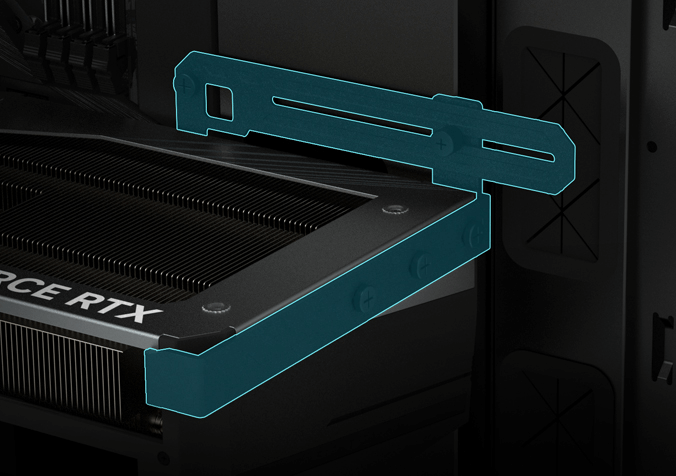
Finally, verify physical clearance. High-end cards often exceed 12 inches in length and may interfere with drive bays, cooling fans, or side panels. Use this checklist before purchase:
- PCIe slot: Confirm a physical x16 slot and compatibility with your motherboard’s generation (3.0/4.0/5.0).
- Power supply: Verify wattage headroom and connector type (8-pin PCIe or 12VHPWR).
- Case: Measure internal length, width, and height clearance—especially around the PCIe slot and front fan mounts.
This sequence prevents returns, installation damage, and post-purchase compatibility surprises.
Install and Optimize Your Graphics Card for Maximum Work Performance
Step-by-Step Clean Driver Installation, PCIe Slot Configuration, and Thermal Validation
Before installing a new graphics card, uninstall existing display drivers using Display Driver Uninstaller (DDU) in Safe Mode to prevent registry conflicts and driver residue. Power down completely, discharge static electricity, and seat the card firmly in the primary PCIe x16 slot. In BIOS/UEFI, set the slot to Gen 4 (or highest supported) and enable Resizable BAR for optimal CPU-to-GPU memory access—particularly beneficial for AI and rendering workloads.
After booting, install the latest official studio or workstation driver package—never generic or game-focused drivers—for your use case. Then validate thermal stability: run a 15-minute GPU stress test using tools like FurMark or OCCT and confirm junction temperatures remain below 90°C, per industry guidance (2024). If fans behave erratically, clocks throttle prematurely, or temperatures spike, reseat power connectors, improve case airflow (e.g., add intake fans), and retest before returning to production workloads.
FAQ
How much VRAM do I need for 1080p video editing?
A mid-range card with 8GB of VRAM is typically sufficient for 1080p video editing, including basic effects rendering and timeline playback.
Why is ISV certification important for workstation graphics cards?
ISV (Independent Software Vendor) certification ensures better compatibility and stability by validating the card with professional applications, minimizing viewport glitches, rendering artifacts, and crashes.
What is the role of ECC memory in workstation GPUs?
ECC (Error-Correcting Code) memory ensures data integrity by detecting and correcting memory errors during long or critical tasks like simulations and renders, reducing the risk of data corruption.
Can I use a high-end gaming graphics card for rendering tasks?
Yes, high-end gaming GPUs often offer higher compute power and memory bandwidth per dollar than entry-level workstation cards, making them suitable for rendering tasks in tools that don't require ISV certification.
What steps should I take before installing a new graphics card?
Uninstall existing drivers using Display Driver Uninstaller (DDU), confirm PCIe slot compatibility and physical dimensions, verify power supply capacity, and ensure the card fits your case.
What tools can I use to monitor GPU bottlenecks?
You can use tools like Windows Task Manager, GPU-Z, or HWiNFO64 to diagnose GPU utilization, VRAM usage, temperature trends, and more.
Table of Contents
- Evaluate Your Workload’s Graphics Card Requirements
- Choose the Right Graphics Card: Workstation vs. Consumer Trade-Offs
- Verify Physical and System Compatibility Before Installing Your New Graphics Card
- Install and Optimize Your Graphics Card for Maximum Work Performance
-
FAQ
- How much VRAM do I need for 1080p video editing?
- Why is ISV certification important for workstation graphics cards?
- What is the role of ECC memory in workstation GPUs?
- Can I use a high-end gaming graphics card for rendering tasks?
- What steps should I take before installing a new graphics card?
- What tools can I use to monitor GPU bottlenecks?